
Configuration of Yealink W90DM with W90B
Step 1 – Creating User on IP Voice
1. Log onto IP Voice Portal
2. Go to Extensions > System > Add Extension
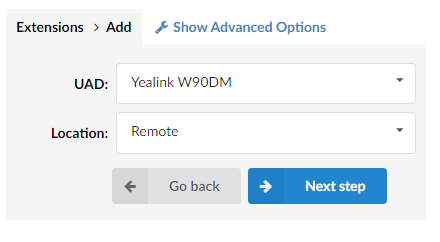
3. UAD : Yealink W90DM & Location : Remote
4. Now configure your extension number, name, email and auto provisioning as below . Note , the MAC address you enter here , is the MAC of the Yealink DECT manager
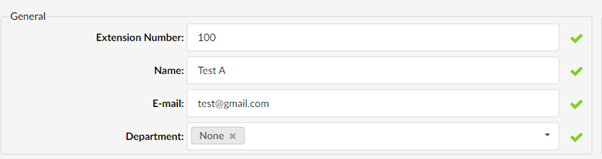

5. Save
Step 2 – Force Touchless Provision
1. Whilst into IP Voice portal
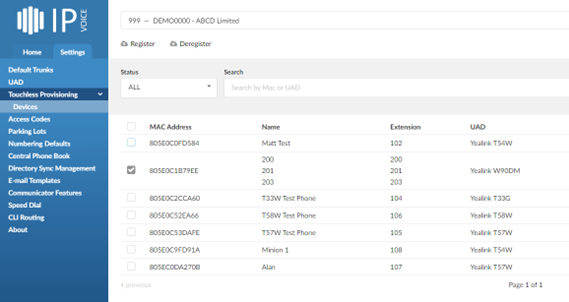
2. Select Settings > Touchless Provisioning > Devices
3. Select the MAC address of Yealink W90DM
4. Press register to force provision.
5. Now connect YealinkW90DM and Yealink W90B into network.
Step 3 – Check to see if Yealink W90DM is registered on IP Voice
1. Log onto IPVoice Portal
2. Select Monitor > Extensions
3. Now you will see the extensions you have created showing as online

Step 4 – Pair W90B to W90DM
1. Log into Yealink W90B Base using default credentials:
a. Username – admin
b. Password – admin
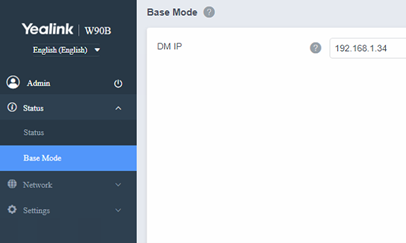
2. Once logged into GUI , navigate to Status> DM IP
3. In the DM IP section is where you enter the local IP address of the DECT Manager
4. Press confirm to save
5. Now please wait approximately 120 seconds for the W90 base to pair with the DECT manager.
STEP 5 – Check W90DM status
1. Log into Yealink W90DM
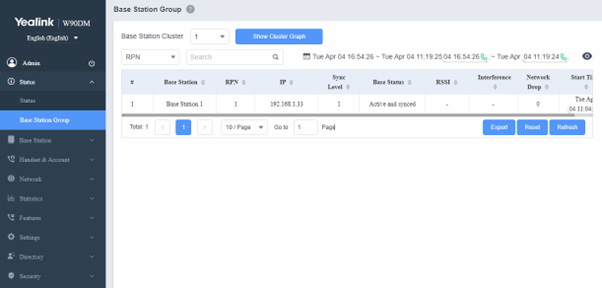
2. Select Status > Base Station Group
3. Press refresh
4. Base Station 1 will now show as “Active and Synced”, meaning the base has successfully paired.
Have more questions? Submit a request